Claude Code Panel
A native SwiftUI desktop application for monitoring and interacting with Claude Code CLI sessions. Real-time visualization of conversations, tool usage, context metrics, and costs -- all in a terminal-aesthetic interface built from the ground up.
At a Glance
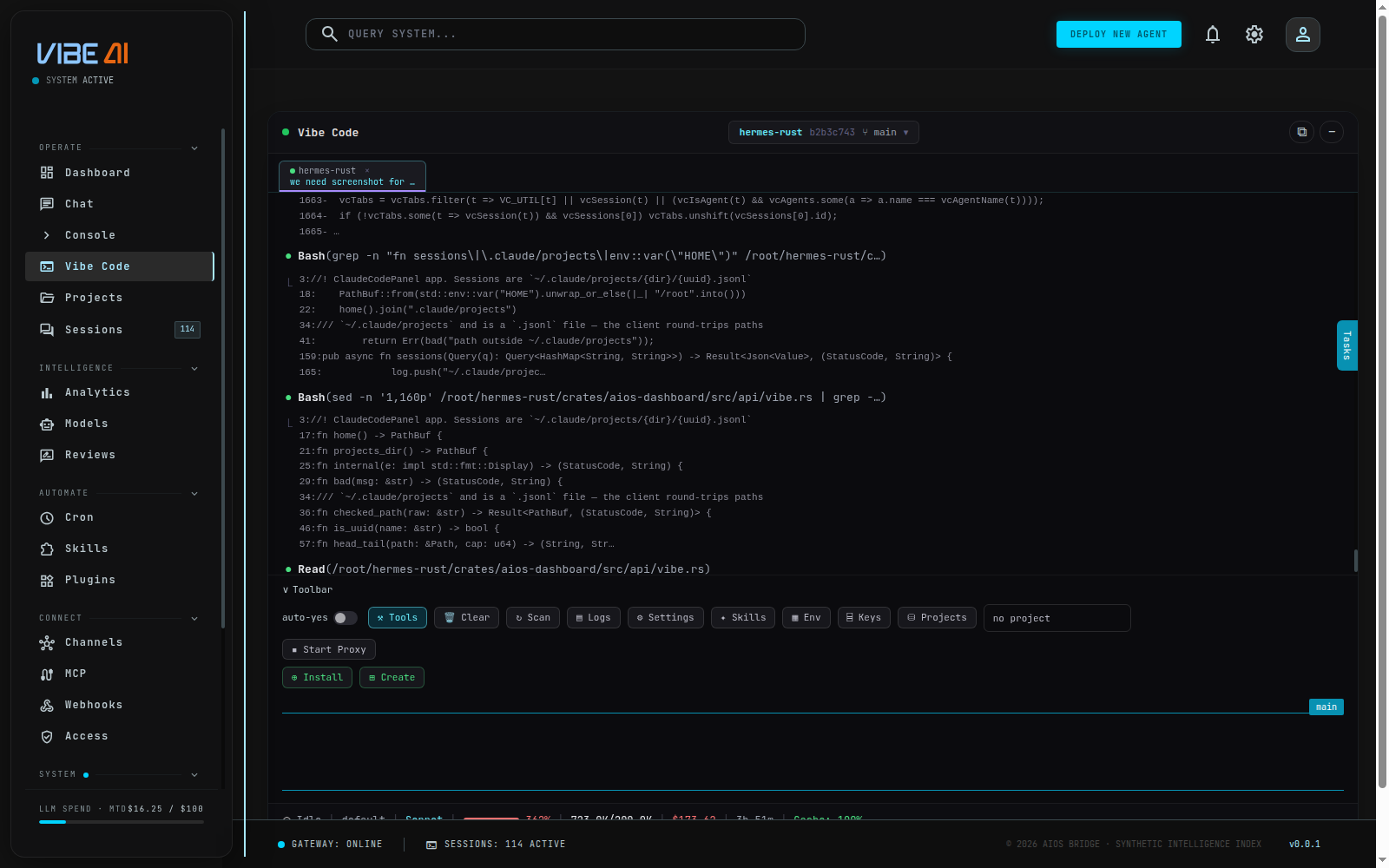
A real session, live.
Not Another Electron Wrapper
This is a native macOS application built entirely in Swift and SwiftUI. No web technologies, no runtime overhead -- just fast, efficient, pixel-perfect macOS engineering.
Zero-Write Architecture
The panel reads session JSONL files but never writes to them. All interaction with Claude Code goes through the CLI binary. This eliminates race conditions and data corruption entirely.
Real-Time File Watching
Uses macOS DispatchSource for kernel-level file monitoring. When Claude Code writes to a session file, the panel picks up changes instantly with incremental byte-offset reads.
Full MCP Client
A native implementation of the Model Context Protocol -- JSON-RPC 2.0 over stdio. Connect to MCP servers, discover their tools, and call them directly from the panel UI.
Terminal Aesthetic, Native Performance
SF Mono throughout, cyan accent borders, dark panel backgrounds -- it looks like a terminal but runs as a first-class macOS citizen with smooth animations and native scroll behavior.
Everything Under the Hood
Every Feature, Up Close
13 capabilities that make the panel more than a log viewer. Each one was built to solve a real problem we hit while using Claude Code every day.
One-Click Session Scan
Hit the Scan button and the panel crawls your entire ~/.claude/projects/ directory, validates UUID filenames, filters out subagent sidechains, and builds a full session list -- with a live scan log showing every step in real time. Two-phase discovery: a fast stat pass for timestamps, then head/tail reads for metadata extraction. You see exactly what it finds, what it skips, and why.
Browser-Style Session Tabs
Every session you open gets its own tab in a horizontal tab bar. Each tab shows the project name and session label, with a colored dot for the active tab and close buttons on each. Click to switch instantly -- events are cached per tab so there is no re-parsing. The tab bar scrolls horizontally when you have many sessions open.
Pinnable Skill Buttons
Open the Skills Browser to see every skill installed on your system -- global and project-scoped -- with scope badges, descriptions, and a play button to run each one. Pin your favorites and they appear as quick-launch capsule buttons directly in the toolbar. One click to invoke any skill. Pinned skills persist across sessions via UserDefaults.
Smart Proxy with Traffic Analysis
Start a local proxy server on port 8080 that intercepts API traffic between Claude Code and Anthropic. The traffic panel shows every request with direction arrows, timestamps, model used, status codes, response times, token counts, and prompt analysis with intent classification. Tracks total tokens in, out, and injected. A full API observatory running inside the panel.
Skill / Agent / CLAUDE.md Builder
A multi-step wizard that walks you through creating four types of files: Skills (slash commands with templates for Workflow, Checker, Generator patterns), Agents (with model selection, max turns, tool allowlists), CLAUDE.md (project instructions), and SOUL.md (project personality). Each type has scope selection, content templates, a live file preview, and saves directly to the correct directory.
Skills Installer
The panel ships with bundled skills (git-up, save, update). The Install panel shows each skill with a checkmark if already installed or a circle if missing. Hit Install All to copy them to your ~/.claude/commands/ directory in one click. Status updates confirm what was installed and flags any failures.
Floating Task Panel
A resizable floating panel anchored to the right edge of the window. Shows your project tasks with the current task highlighted in purple, subtasks with checkboxes, and completed items with green checkmarks and strikethrough. Drag the left edge to resize width (280-600px) or the top edge to resize height. Collapses to a compact 28x72px vertical tab when not in focus.
Environment Inspector
A comprehensive view of your Claude Code configuration. Shows all settings source files (User, Project, Local, Global Config, Project MCP) with green checkmarks for files that exist. Lists every MCP server with transport type badges (stdio/sse/http/ws), command or URL details, and scope. Displays all hooks with event names, type badges (command/prompt/http/agent), source indicators, and conditional triggers. Connect to MCP servers and browse discovered tools -- all from one panel.
Context Visualization Grid
A 20x5 grid where each square represents a portion of the context window. Cyan squares for input tokens, purple for output, green for cache reads, orange for cache writes, and dim squares for unused capacity. Gives you an instant visual map of how full the context is and what categories are consuming it -- far more intuitive than raw numbers. Shows current vs. window token counts above the grid with a color legend below.
File Attachment System
Drag files from Finder directly onto the input bar, or paste screenshots and file paths with Cmd+V. A visual drop zone highlights when dragging over. Attachments appear as removable chips above the text area -- image chips labeled "Image #N" with a photo icon, file chips showing the filename with a document icon. Each chip has an x button to remove. On send, attachments are automatically converted to @path references that Claude Code understands natively.
Keyboard Shortcuts Panel
A toggleable panel organized by context sections -- Chat, Files, and Navigation. Key combos displayed in cyan on the right, action descriptions in white on the left. Covers Cmd+Return to send, up/down arrows for shell history, Tab/Return for autocomplete selection, right arrow to enter folders, left arrow to go back, and Escape to dismiss popups.
Permission Mode Detection
Detects the current Claude Code permission mode directly from the live JSONL session and displays it on the status line with distinct visual indicators. Plan mode shows a cyan pause icon, Accept Edits shows green play arrows, Bypass Permissions shows red play arrows, and Auto mode shows yellow. Always reflects the real state -- no manual configuration needed.
Debug Log Viewer
A built-in log viewer that surfaces internal panel events: session discovery steps, file watcher triggers, JSONL parse results, MCP protocol messages, CLI command execution, and error states. Each line gets a contextual icon (checkmark for success, x for failure, magnifying glass for scanning). Toggle from the toolbar -- stays out of the way until you need to diagnose why a session is not loading or an MCP server is not connecting.
How It Works
  Claude Code CLI          JSONL Files            ClaudeCodePanel
  (Terminal)               (~/.claude/)            (macOS App)

  +------------+    writes    +-------------+   reads    +----------------+
  |  claude    | ----------> | session.jsonl| --------> | SessionManager |
  |  --resume  |             |              |           |   Discovery    |
  +------------+             +-------------+           |   FileWatcher  |
       ^                                                |   Parser       |
       |                                                +-------+--------+
       |                                                        |
       +--- cli interaction ---+                        +-------v--------+
                               |                        |  SwiftUI Views |
                               |                        |   PanelView    |
                        +------+------+                 |   StatusLine   |
                        | claude      |                 |   Dashboard    |
                        | --resume    |                 |   EventRows    |
                        | --print     |                 +----------------+
                        +-------------+
Data Flow
Read-only access to JSONL session transcripts. The panel never writes to session files -- all CLI interaction goes through the claude binary via --resume. Zero risk of data corruption.
Performance
Head/tail metadata extraction reads only the first and last 64KB of multi-megabyte JSONL files. File watchers use DispatchSource for kernel-level efficiency. Incremental parsing means only new bytes are processed.
State Detection
Session state (idle/running/requires_action) is inferred from the JSONL tail by analyzing message types and stop_reasons -- matching the real Claude Code behavior since state is not persisted to JSONL.
Cost Engine
Per-model token accumulation with model-specific pricing. Supports Opus, Sonnet, and Haiku pricing tiers. Tracks input, output, cache read, and cache write tokens separately.
Built With
Pure Apple-native stack. No external dependencies, no package managers, no build tools beyond swiftc.
SwiftUI
Declarative UI framework
Cocoa
macOS native APIs
Combine
Reactive data flow
Foundation
File I/O, JSON, Process
DispatchSource
File system watchers
JSON-RPC 2.0
MCP protocol client
This Is How We Build
Claude Code Panel demonstrates our approach: native performance, clean architecture, real-time data, and developer-first design. The same engineering discipline goes into every AI agent deployment we do for our clients.